
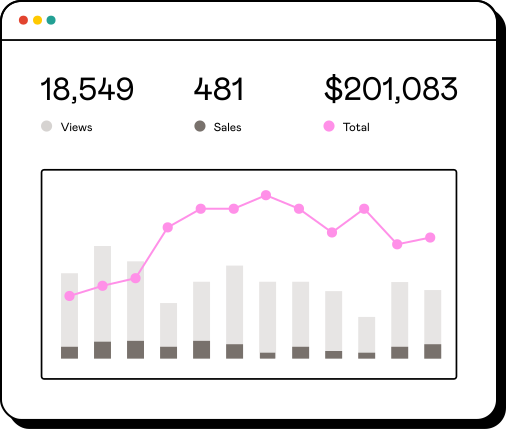
“Show my recent sales.”
See which products people bought and what they paid.
Sell digital products with AI
Connect your Gumroad store to the AI assistant you already use. Check sales, draft products, publish them, and track payouts from your chat.
You’ll need a Gumroad account and an assistant that supports MCP.

An MCP server for selling digital products
Model Context Protocol (MCP) lets your AI assistant work with your store. Manage ebooks, templates, courses, and other digital products without leaving the chat.
See which products people bought and what they paid.

Ask for a product name, price, and description. Add the product files in Gumroad before publishing.
Check recent payout amounts and their status.
Choose your assistant
Submitted for review. The Gumroad connector is not yet available in Muse.
Available now as a custom connector.
Available as a custom connector. Gumroad is not yet listed in Claude’s connector directory.
Not available yet. We’ll announce it here when the Gumroad connector is ready in ChatGPT.
Every assistant connects to its own URL and asks for OAuth access to your Gumroad account. Each connector page lists the exact address to paste.
Set up Gumroad MCP
Setup takes three steps in the assistant you use. You stay signed in to Gumroad, and you can revoke access whenever you want.
Open your assistant’s connector settings and add a remote MCP server using the URL from its connector page.
Gumroad MCP for Claude connector pageSign in to Gumroad when prompted. Review the requested permissions before you authorize access.
Select the connector in your chat. Try asking, “Show my Gumroad products.”
The help center covers the permissions you grant, revoking access, and what to do when publishing fails.
Connecting AI assistants to your Gumroad storeYour products, sales, buyer emails, and payouts, according to the permissions you grant. You can grant some and not others.
New products start as unpublished drafts. With product access, the connector can publish or unpublish them. Review these actions in your MCP client.
Share your product’s Gumroad link. Customers pay through Gumroad checkout. The MCP server does not take payments in your chat.
Revoke the connection any time under Authorized Applications in your Gumroad settings. Disconnecting the connector in your chat app does not revoke its access token, so revoke it here to end the connection.
